Getting started with Dorsia OS
Dorsia OS is your home for managing reservations, payouts and more. This Getting Started guide will walk you through each section so you can get started quickly.
GETTING STARTED
Log-in Instructions
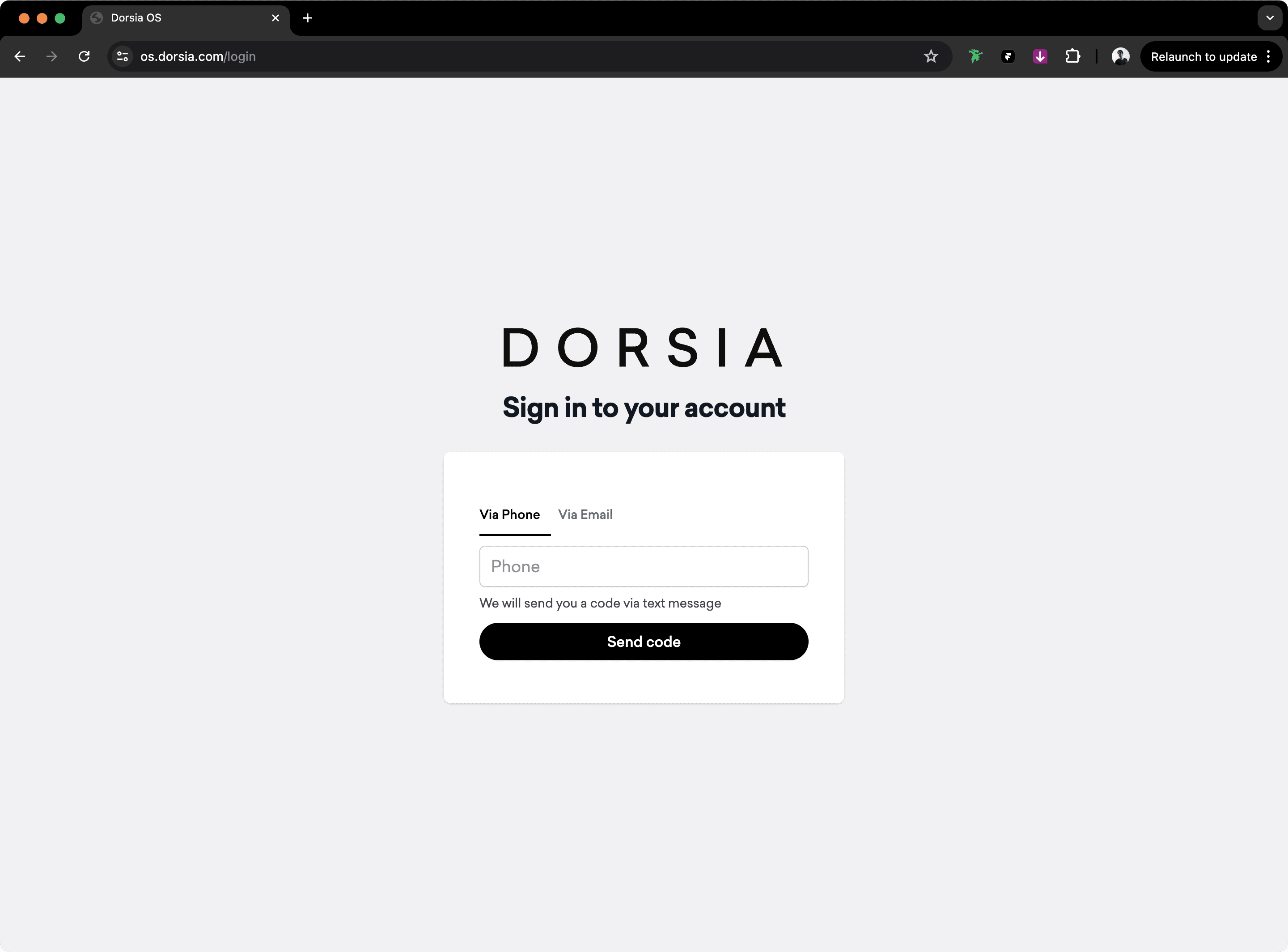
- To log in, please go to https://os.dorsia.com/login
- Enter your email or cell phone number and click "Send code"
- You will receive an email or text message with a secure 4-digit code. Enter the code and click "Login"
ACTION REQUIRED
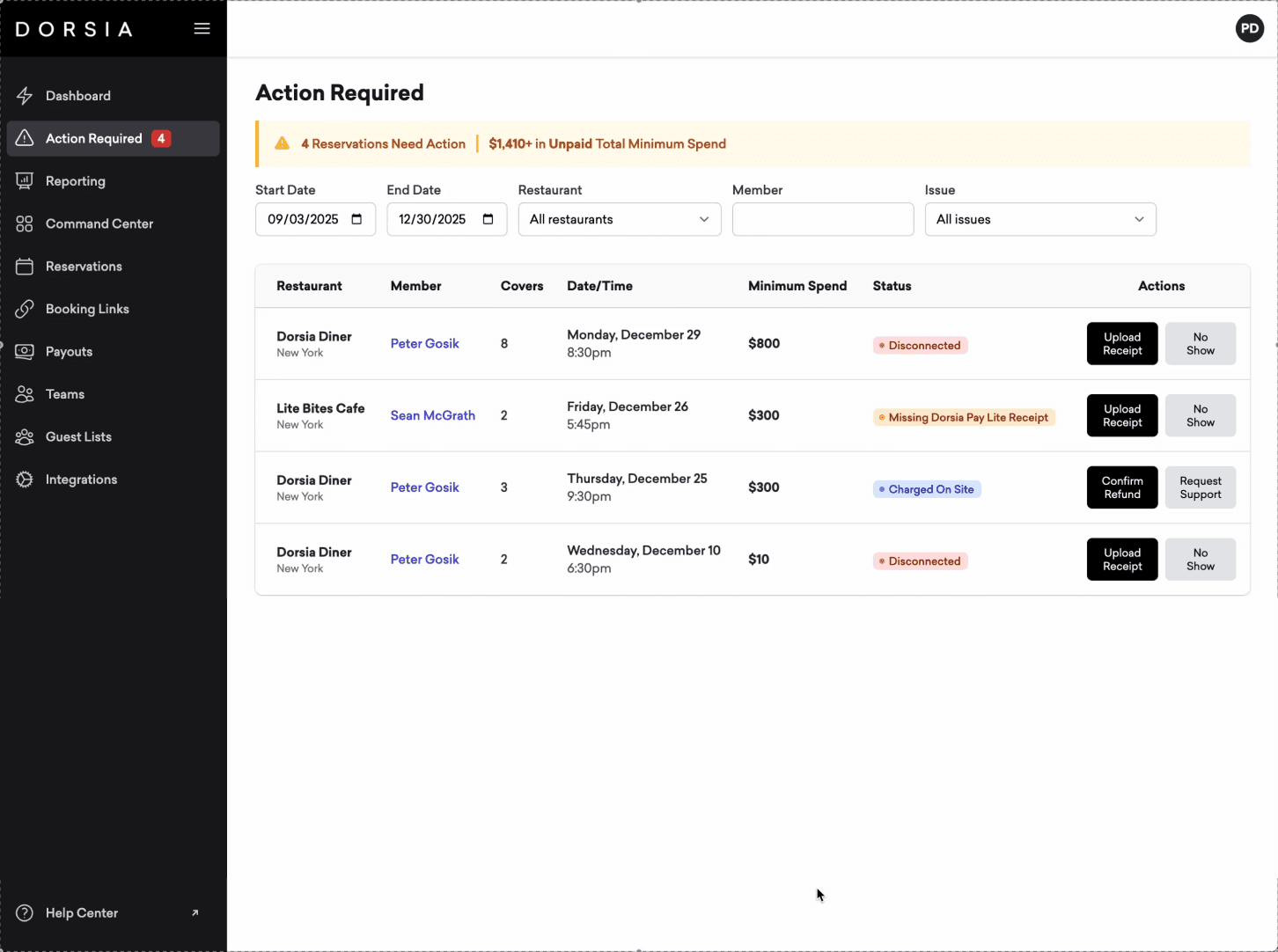
New: Action Required
Reservations listed here need a quick action from your team before payment can be processed.
- Upload missing receipts or resolve disconnected checks
- Confirm refunds or mark no-shows when applicable
- Fully optimized for mobile so you can resolve issues on the go
Reminder: Please resolve outstanding or disconnected checks as soon as possible to avoid payout delays.
RESERVATIONS DASHBOARD
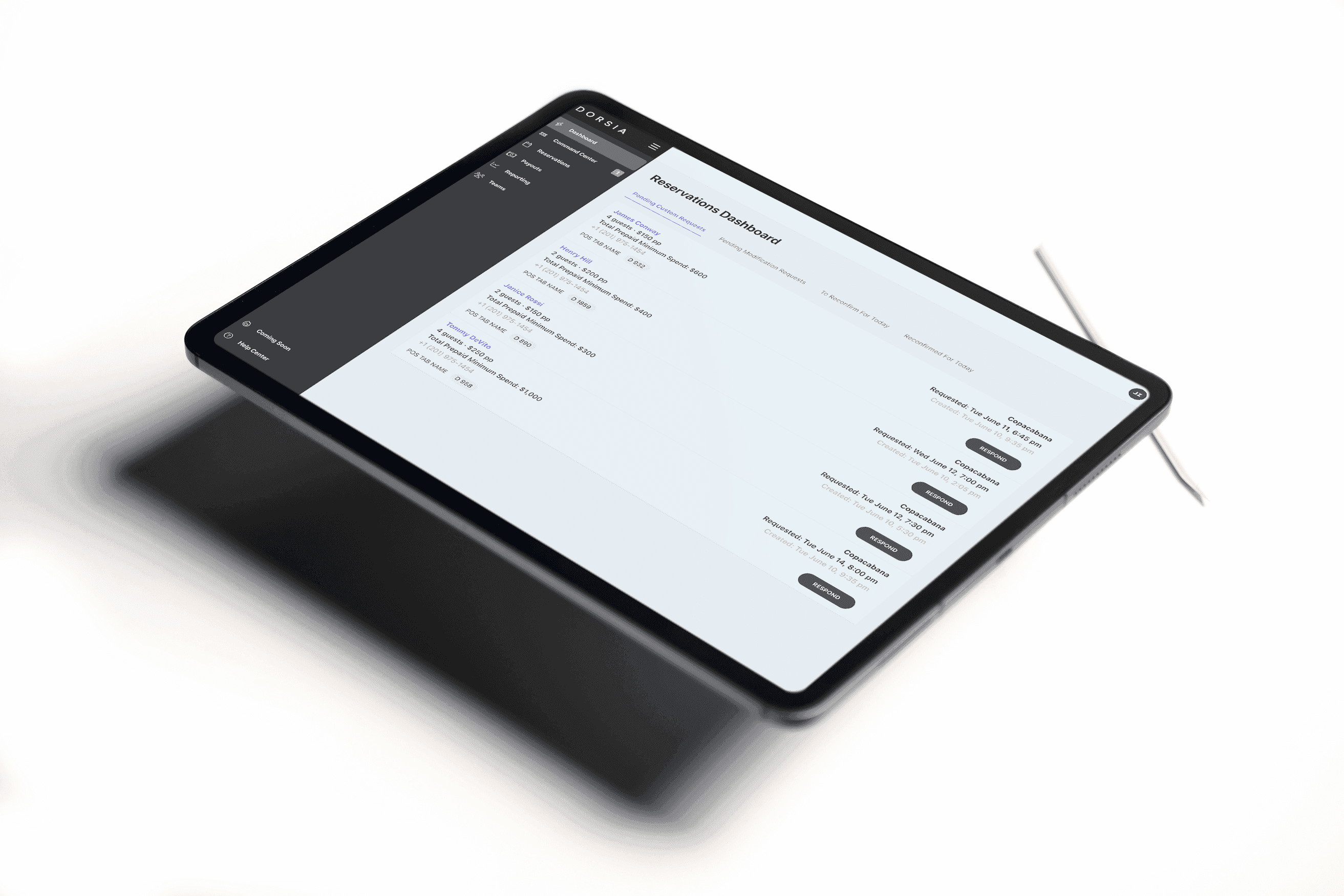
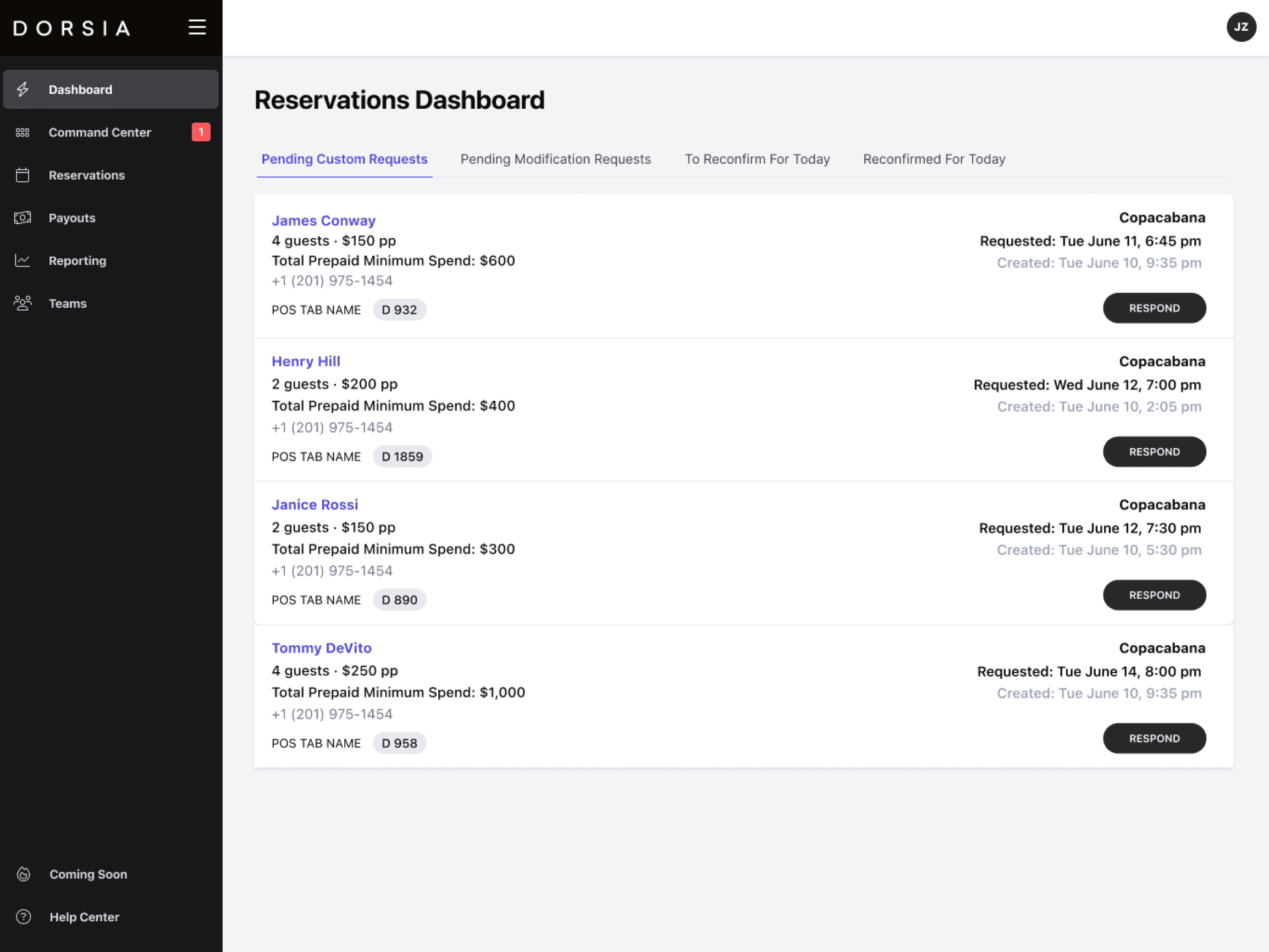
Pending Custom Requests
The Pending Custom Requests tab allows you to manage all requests, day-of and future, minimizing the need for back and forth communication. Click the Respond button to:
- Confirm the request
- Propose an alternative time, party size, and/or minimum spend per person
- Deny the request
Reminder: Please remember to respond to pending custom requests ASAP.
RESERVATIONS DASHBOARD
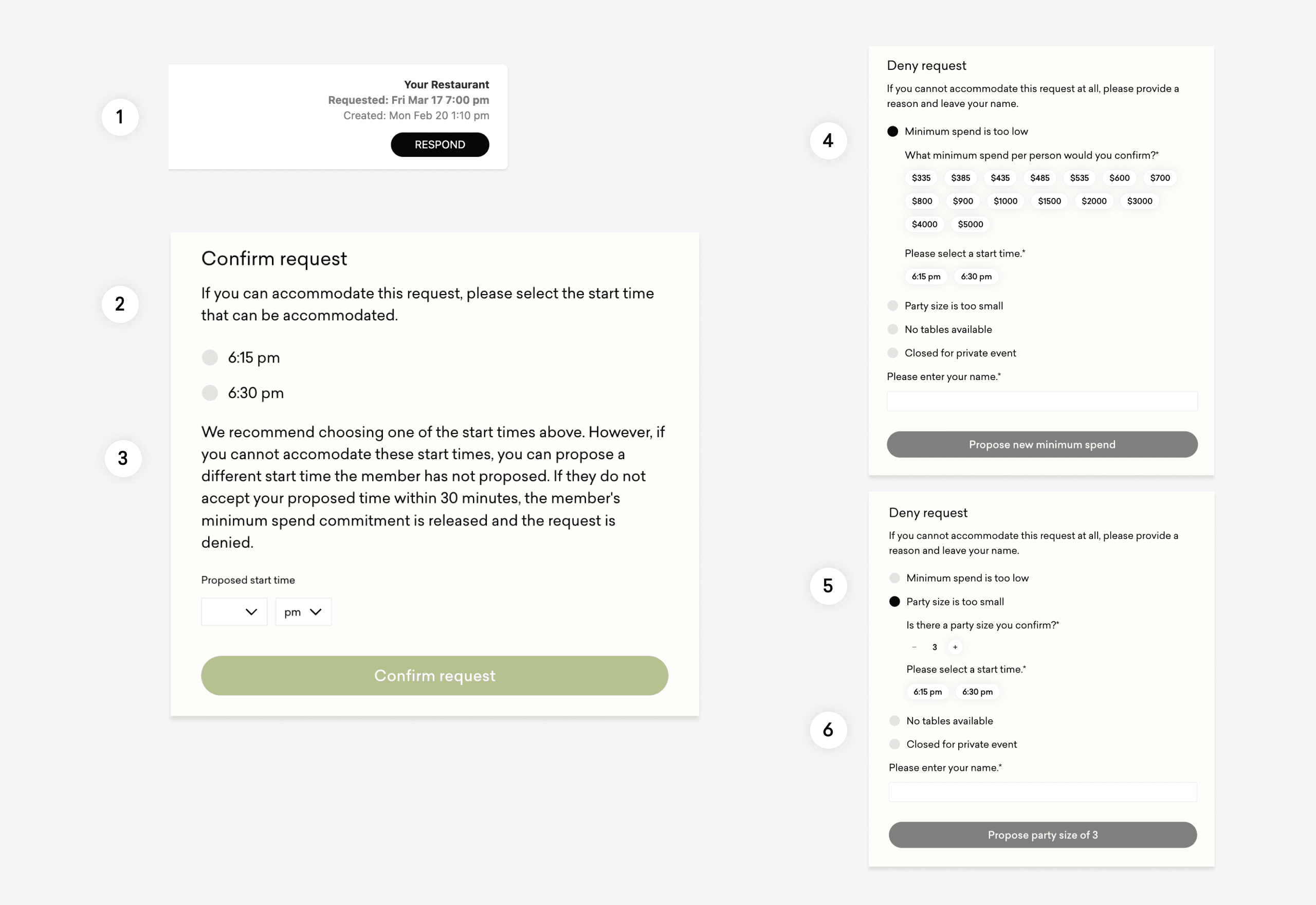
Responding to Pending Custom Requests
Once you click Respond, you can:
- Confirm the request and select a time
- Propose a new start time to the member
- Propose a new minimum spend
- Propose a different party size
- Deny the request
RESERVATIONS DASHBOARD
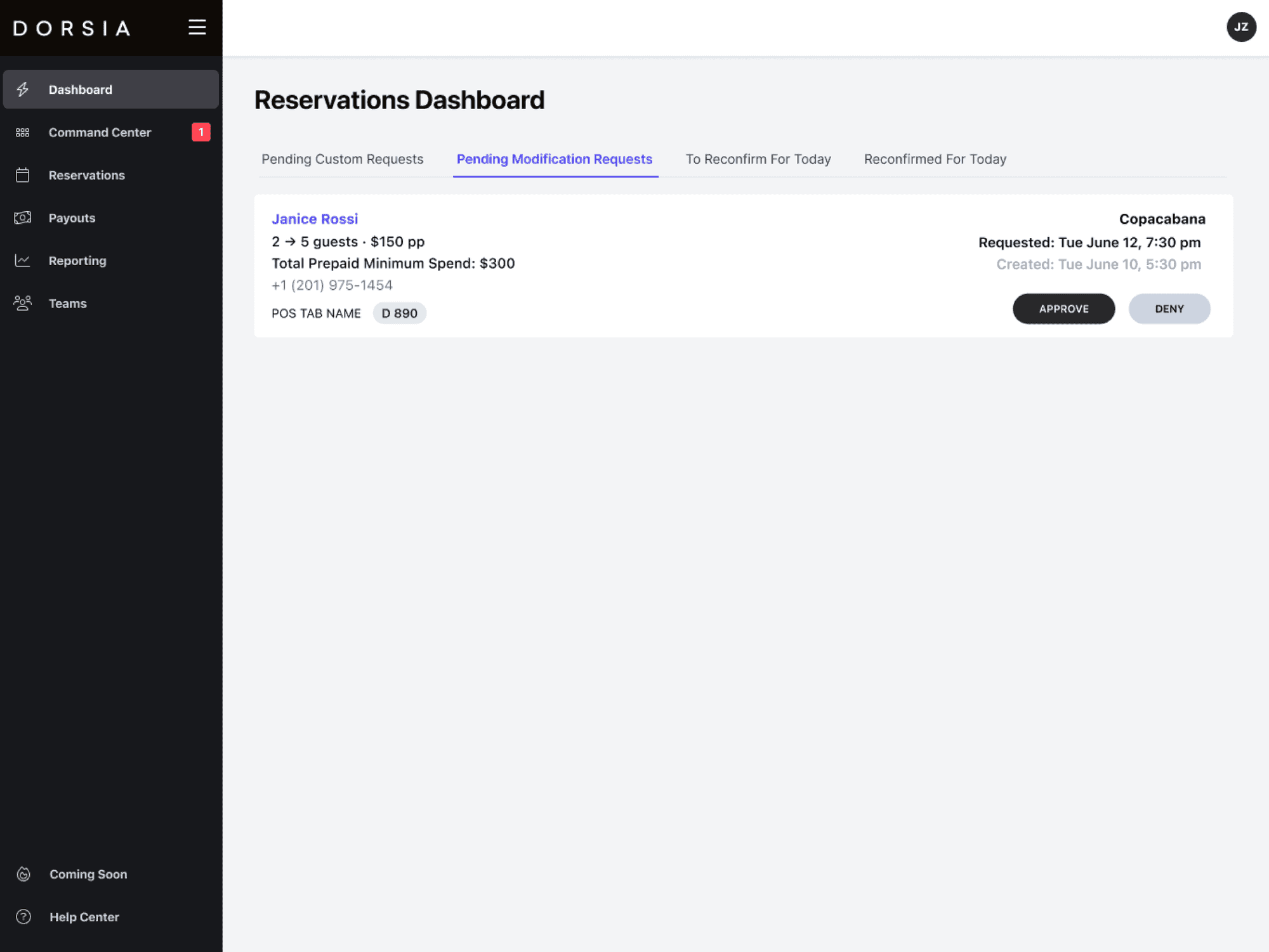
Pending Modification Requests
Members with an existing reservation can request to increase their party size. You can review these requests under the Pending Modification Requests tab by simply pressing Approve or Deny. If approved, please modify the party size and the new prepayment amount in the reservation notes.
Reminder: Please remember to respond to pending custom requests ASAP.
RESERVATIONS DASHBOARD
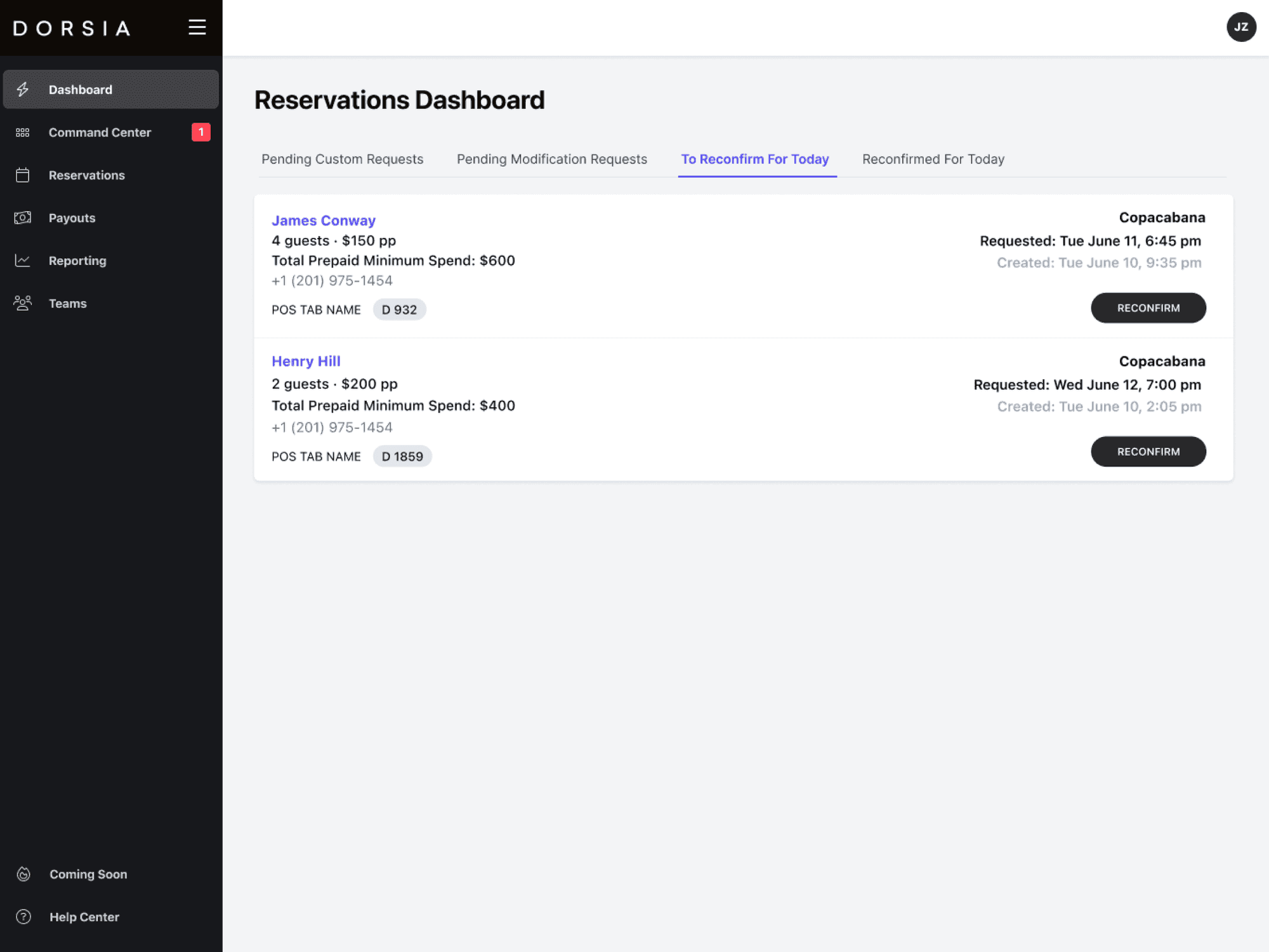
To Reconfirm for Today
The To Reconfirm for Today tab simply reconfirms that all Dorsia reservation details are entered into your reservation system. This is not a confirmation for members. If reservations are not reconfirmed by 2pm day-of in the dashboard, a member of the Dorsia team will contact your restaurant directly to reconfirm.
RESERVATIONS DASHBOARD
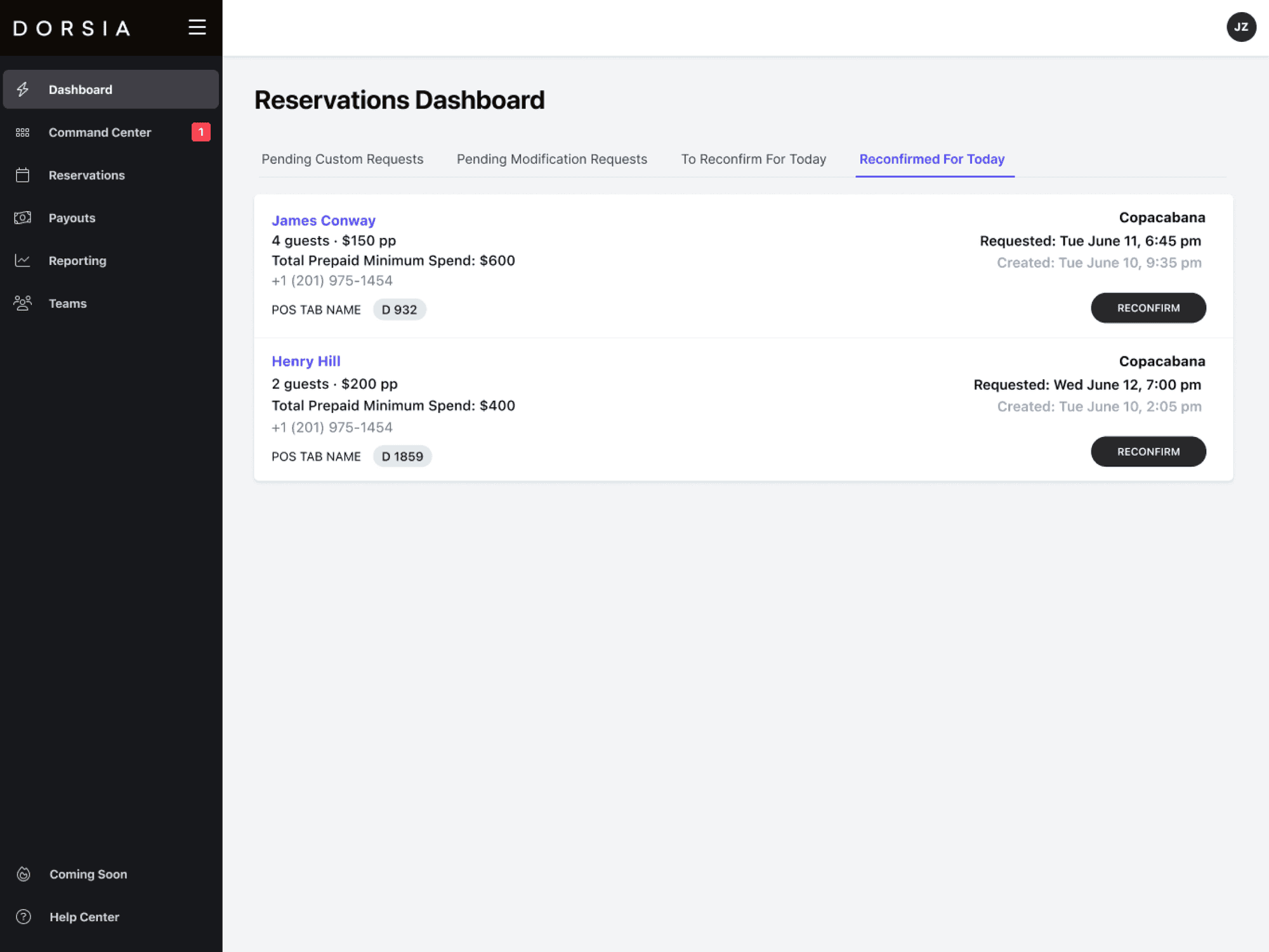
Reconfirmed for Today
The Reconfirmed for Today tab will show all reservations that your team has already reconfirmed for today.
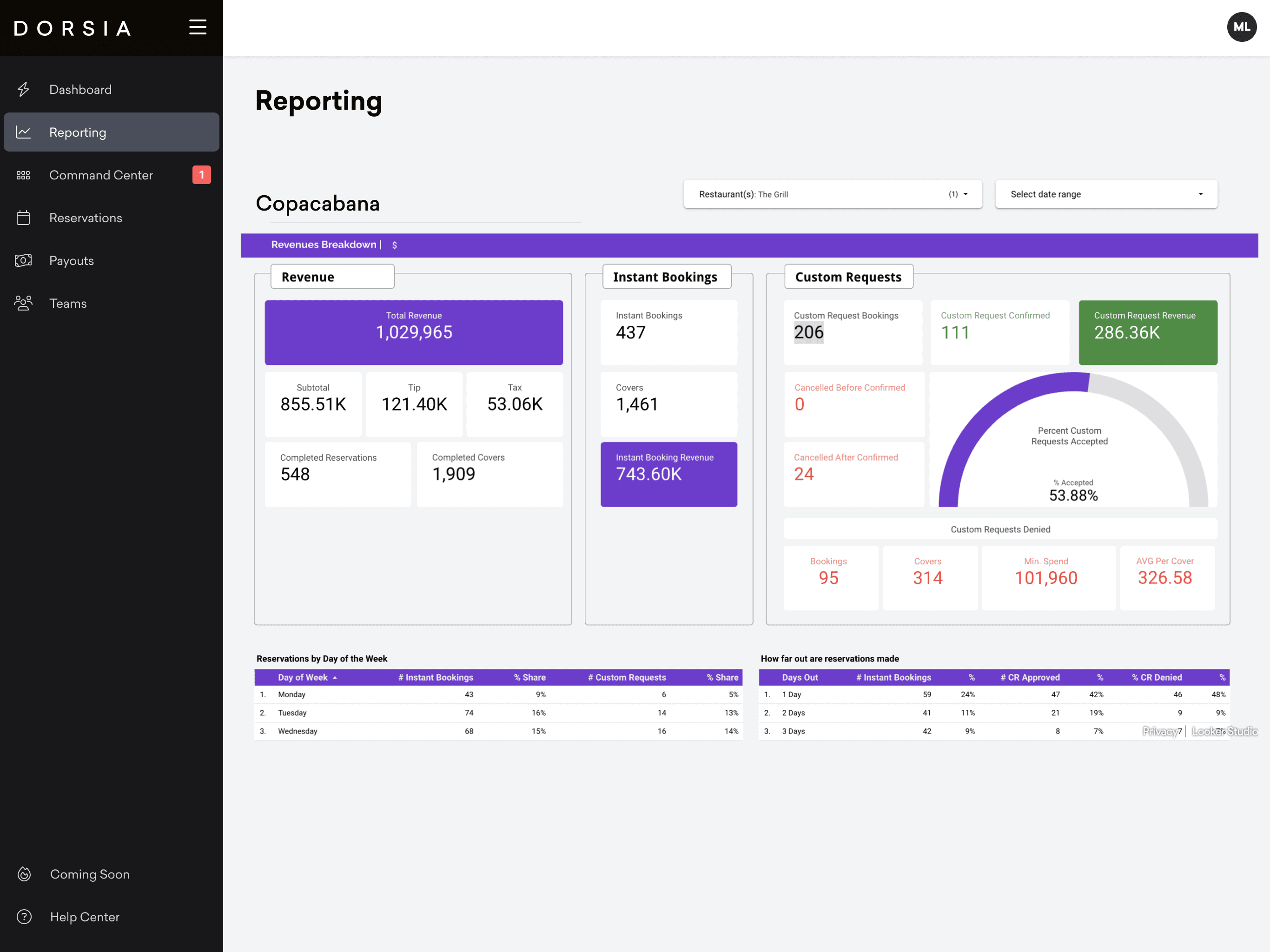
REPORTING
Detailed Analytics
In Reporting, you'll have access to detailed analytics from all Dorsia bookings.
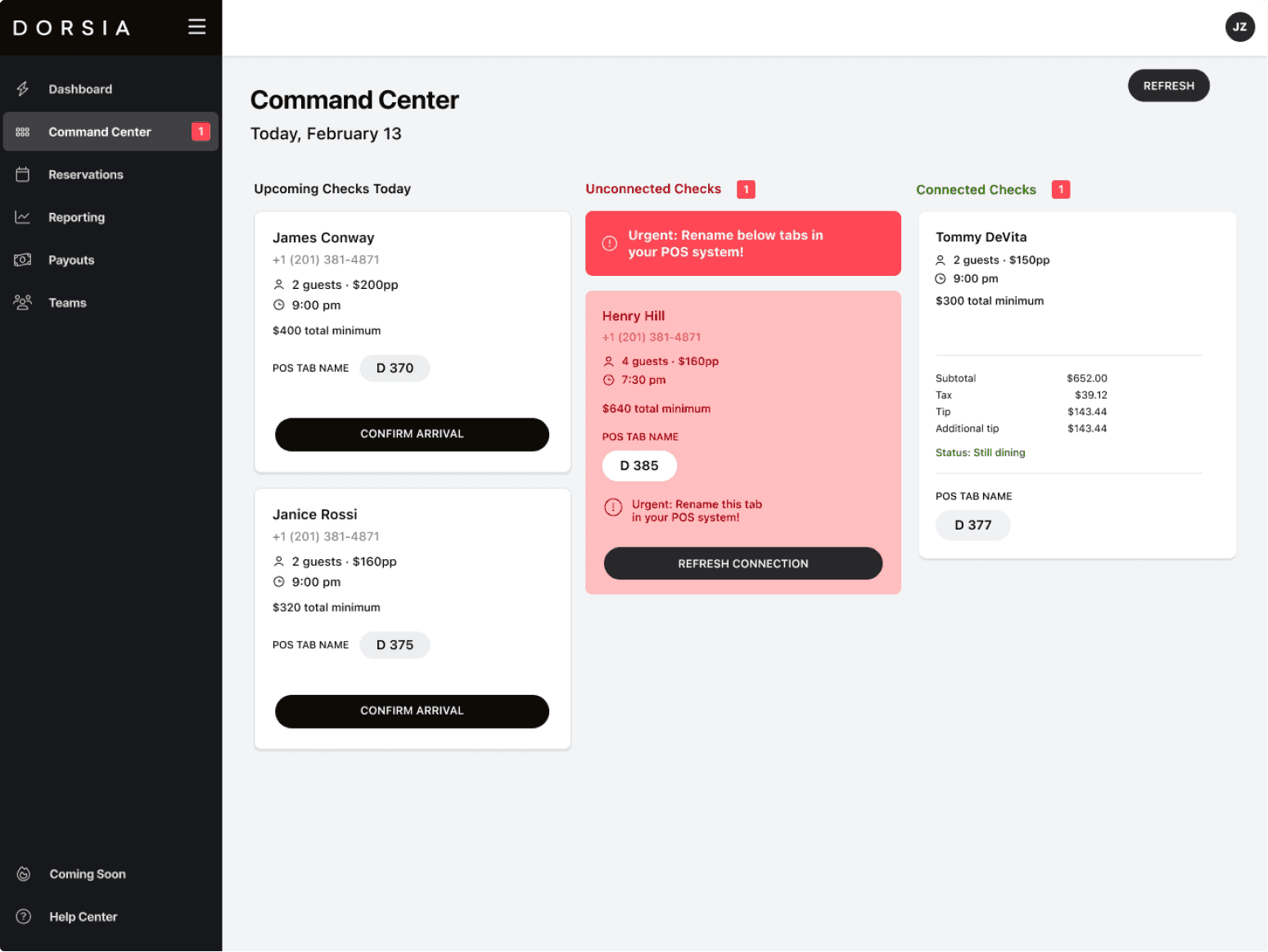
COMMAND CENTER
Manage In-service Reservations
The Command Center surfaces reservations that need attention right now — in-service covers, arrivals, and follow-ups — so you can keep the floor running smoothly.
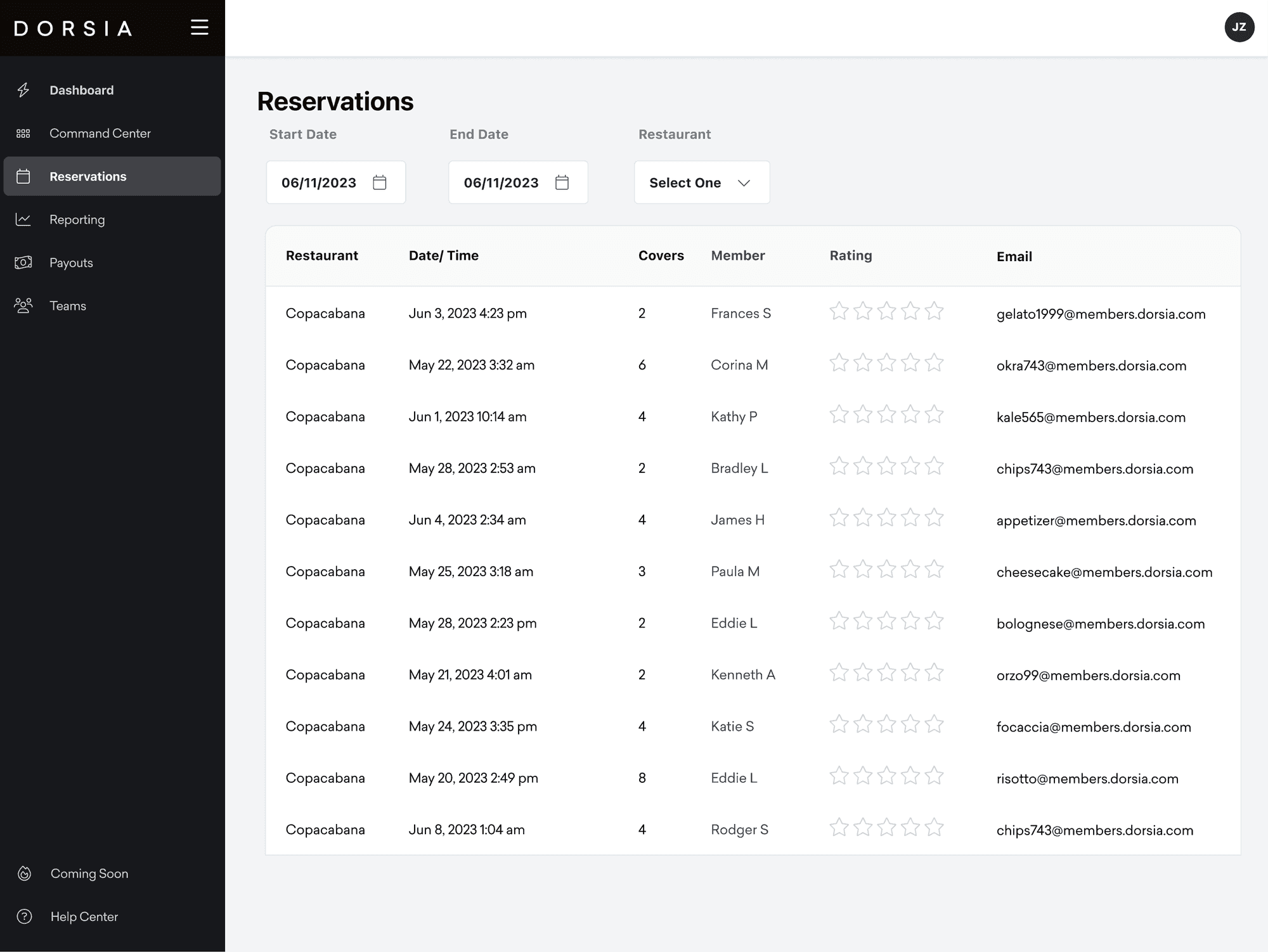
RESERVATIONS TAB
View All Reservations
The Reservations tab shows all reservations to-date. You can filter reservations by selecting a date range. If you’re part of a group, you can filter by restaurant by choosing from the Restaurant drop-down menu.
RESERVATIONS TAB
New: Modify Reservations
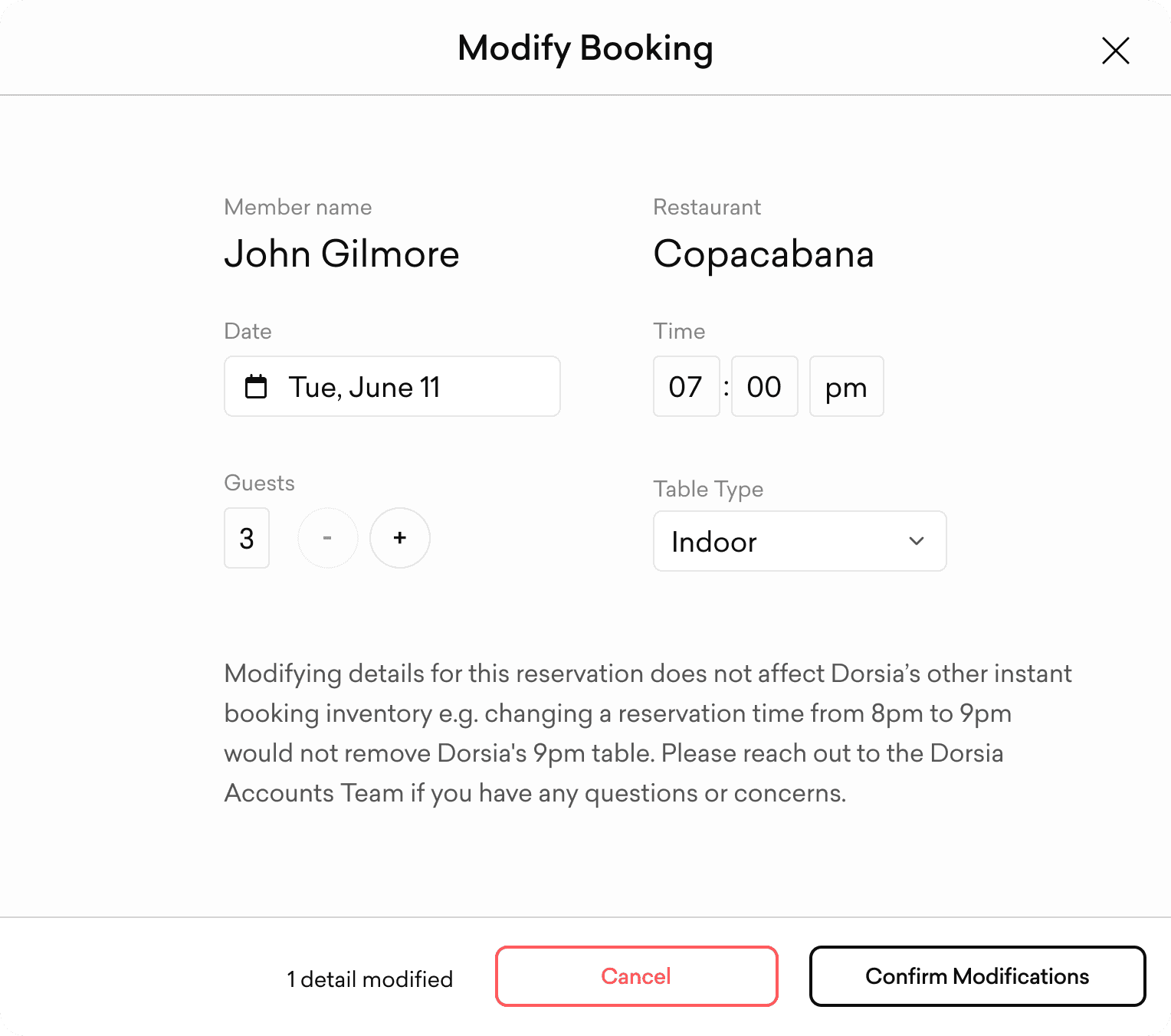
Here you'll also be able to Modify reservations. Click the menu (…) on the reservation you'd like to modify. Modifying details for this reservation does not affect Dorsia's other instant booking inventory — e.g. changing a reservation time from 8pm to 9pm would not remove Dorsia's 9pm table. Please reach out to the Dorsia Accounts Team if you have any questions or concerns.
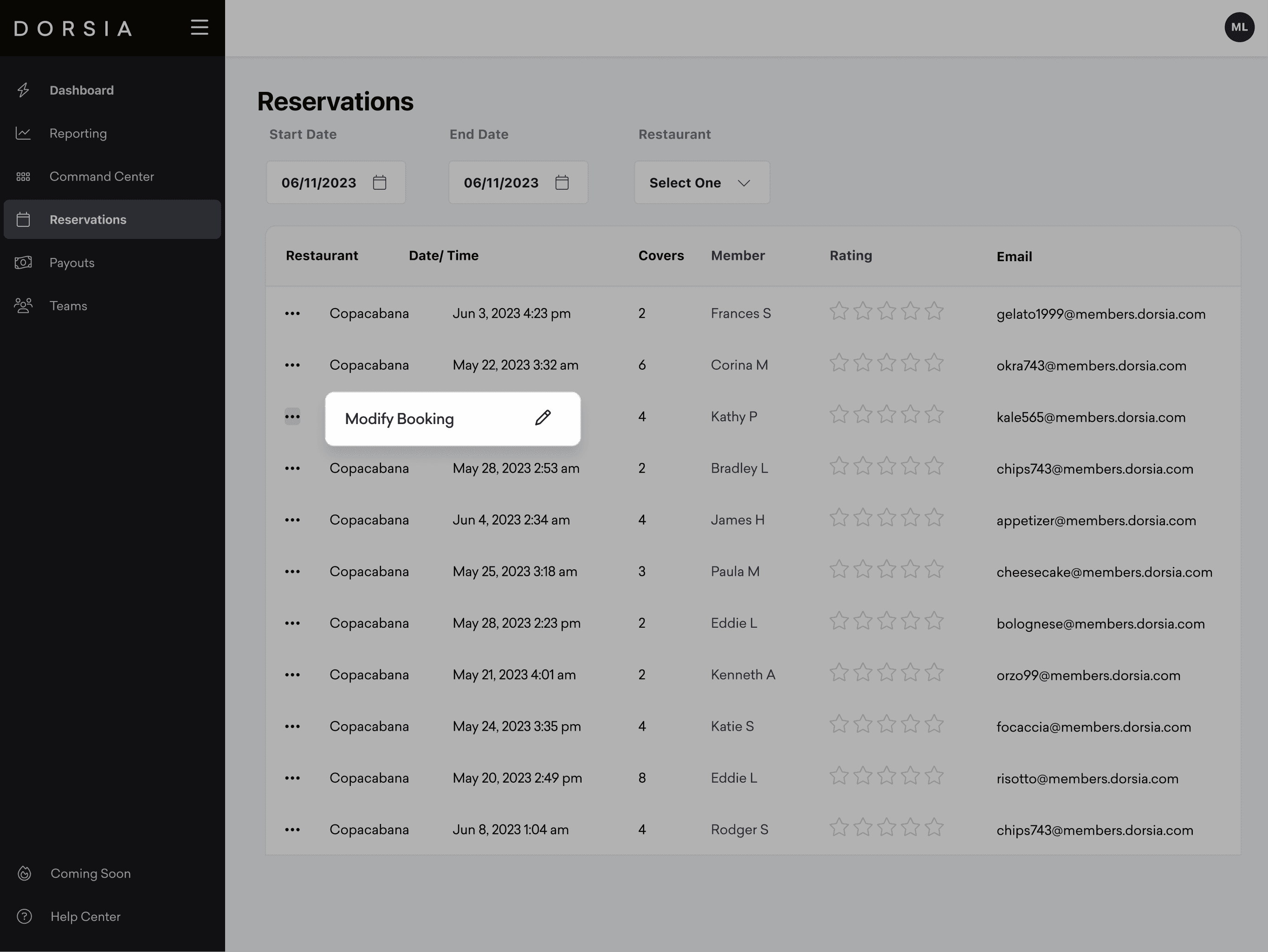
TABLE TYPES
Table Types
Table types are available in custom requests and counter-proposals. If you use table types for your seatings in Dorsia, members can specify which they'd like while making a reservation request. You'll see what was requested in our email notification as well as inside Dorsia OS.
PAYOUTS TAB
Viewing Payouts
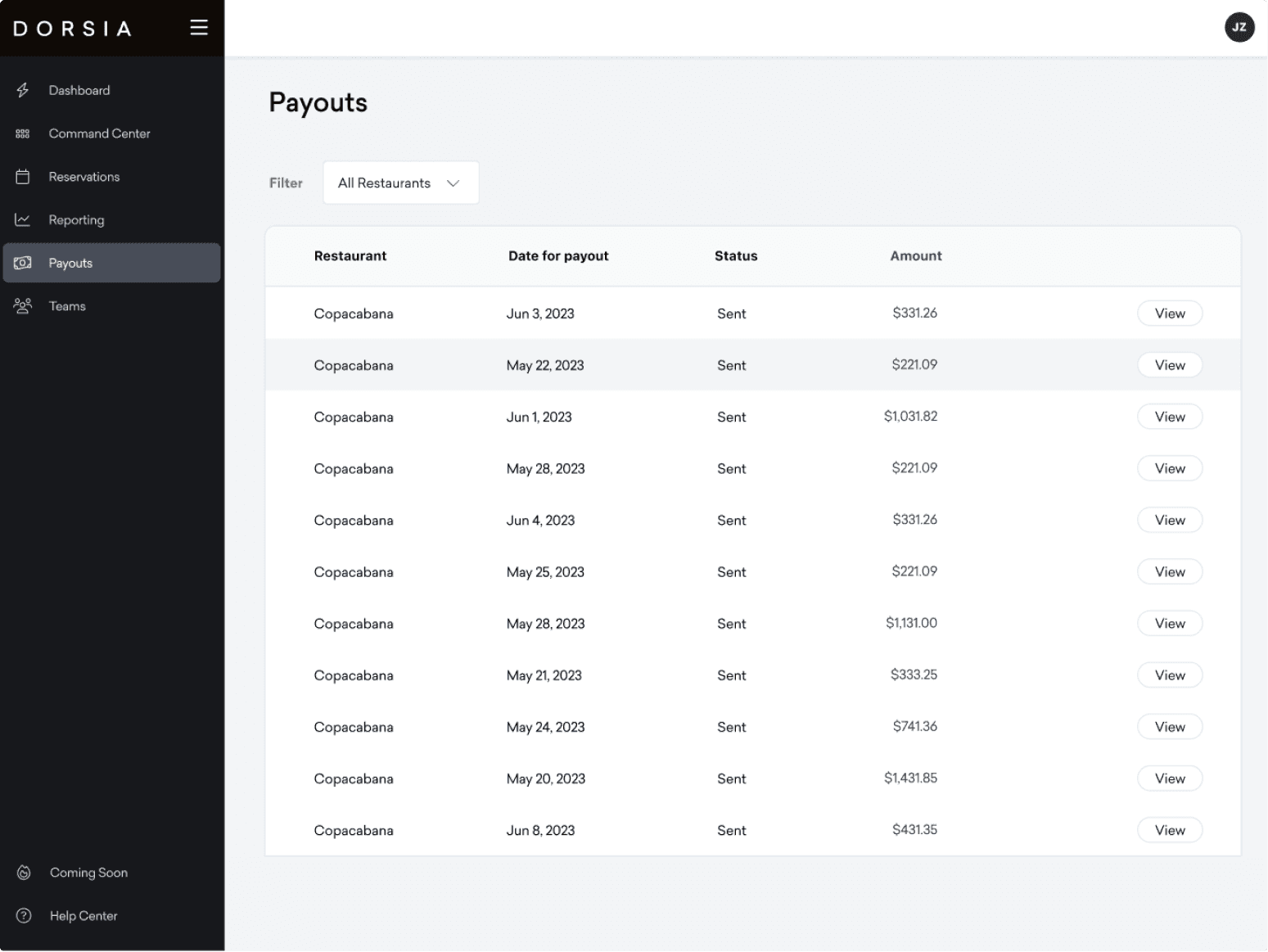
The Payouts tab shows all payouts to-date sent via Stripe. You can filter between restaurants by choosing from the Filter drop-down menu. Click the View button to see a more detailed breakdown of each payout, including reservation details, Dorsia and Stripe fees.
TEAMS TAB
Manage your Team
In Teams, you can manage who has access to view Dorsia OS. To add a Team Member, simply click into a team, enter their name and phone number, and click Add member.